

What is a Text input
Text input is an input component that allows you to enter a line of text. The value can be entered by the user or later fetched from an uploaded dataset (bulk-run).When to use the Text input component
The Text input component is suitable for short pieces of text. Such as a question, name, topic, etc.How to add a Text input to my custom Tool
The Text input component is listed under User inputs. You can add it to your Tool using the main section or the side-bar.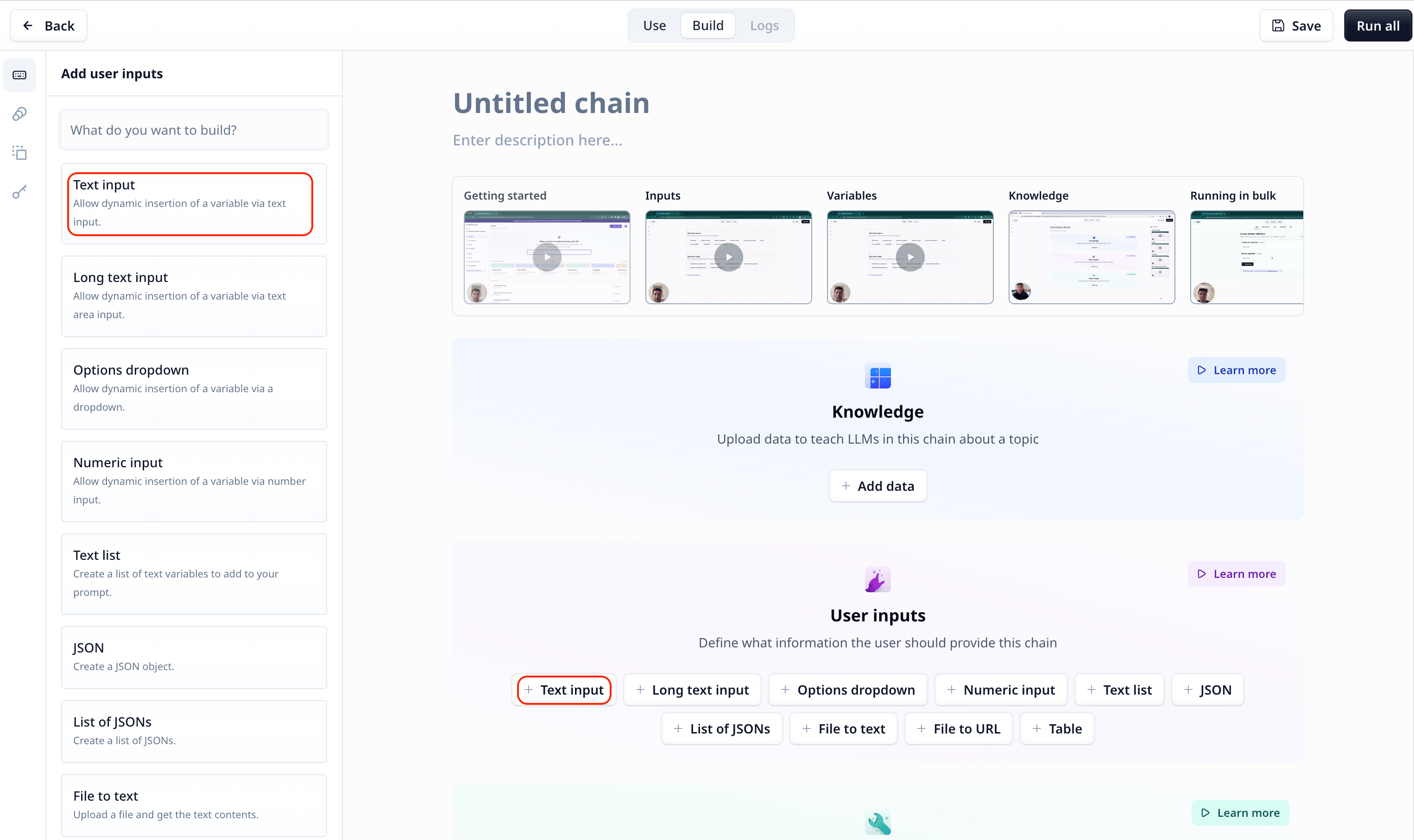
Text input setting
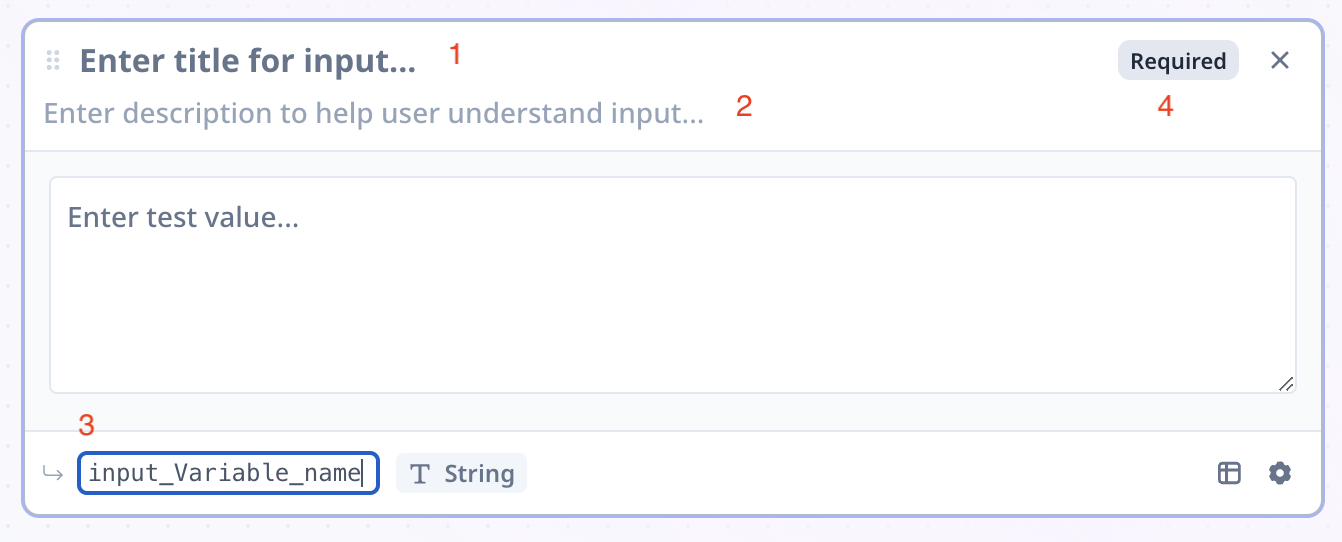
- Title: the title of your input component
- Description: To describe what this input is or will be used for, etc.
- Variable name: located on the bottom left and marked in green, you can rename the variable and use the name to access the data in your Tool
- Optional/Required: located on the top right, as the name suggests, unlike an optional component, a required components must be provided before your analysis starts.
Set a default valueTo set a default value for an input component, enter the value and click on the small setting icon on the bottom right. Next click on
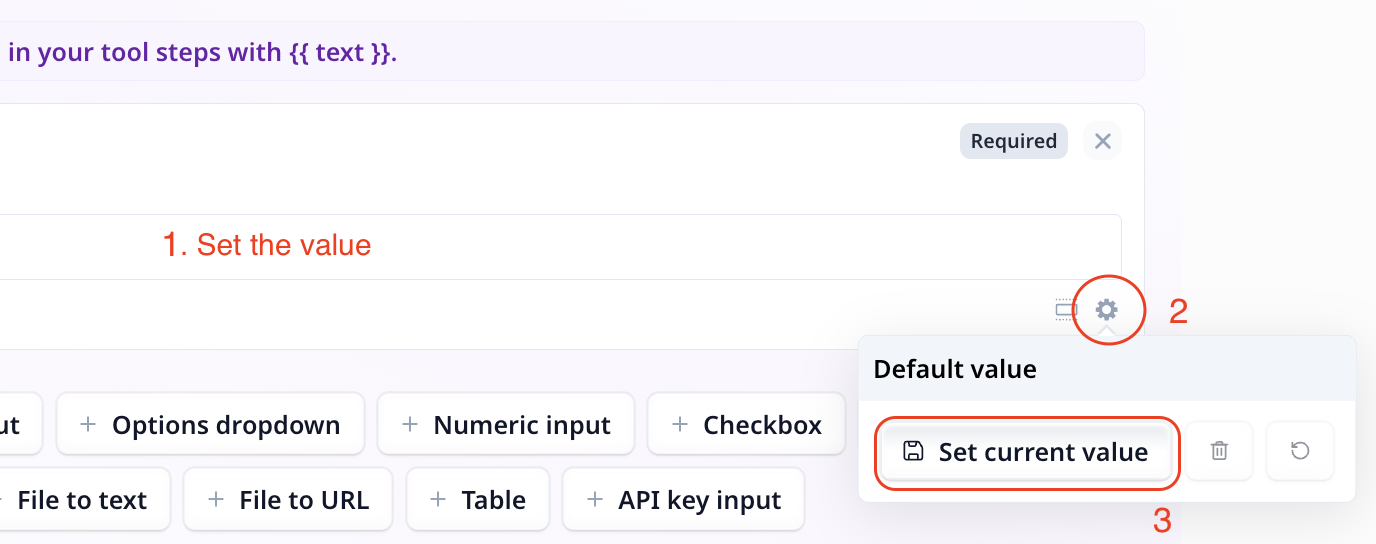
Set current value.Fill automatically from the run
Text inputs support automatic filling with information about the user who triggered the agent run. Select one of the auto-fill options and the server resolves the user’s identity at run time, injecting the value directly into the tool’s parameters without the AI providing or seeing it. Open the Fill automatically from the run dropdown on any text input. The two available options are Triggering user’s email (the verified email address of the human who started the run) and Triggering user’s name (the display name of the human who started the run).These values are resolved and injected server-side. They are hidden from the AI and cannot be spoofed or overridden by the model.
Use cases
Logging
Record which user performed which action in your tool outputs or connected systems.
Personalization
Customize tool responses or outputs based on the identity of the person running it.
Audit trails
Maintain records of who triggered specific operations for compliance or review.
Security
Tie actions to verified user identities without relying on user-supplied values.
Access the entered text
To access the entered text use the variable mode{{}} and the input step name. Under the default setting it is accessible
via {{text}} (or params.text in a JavaScript step).